Writing and formatting
Paragraph styles
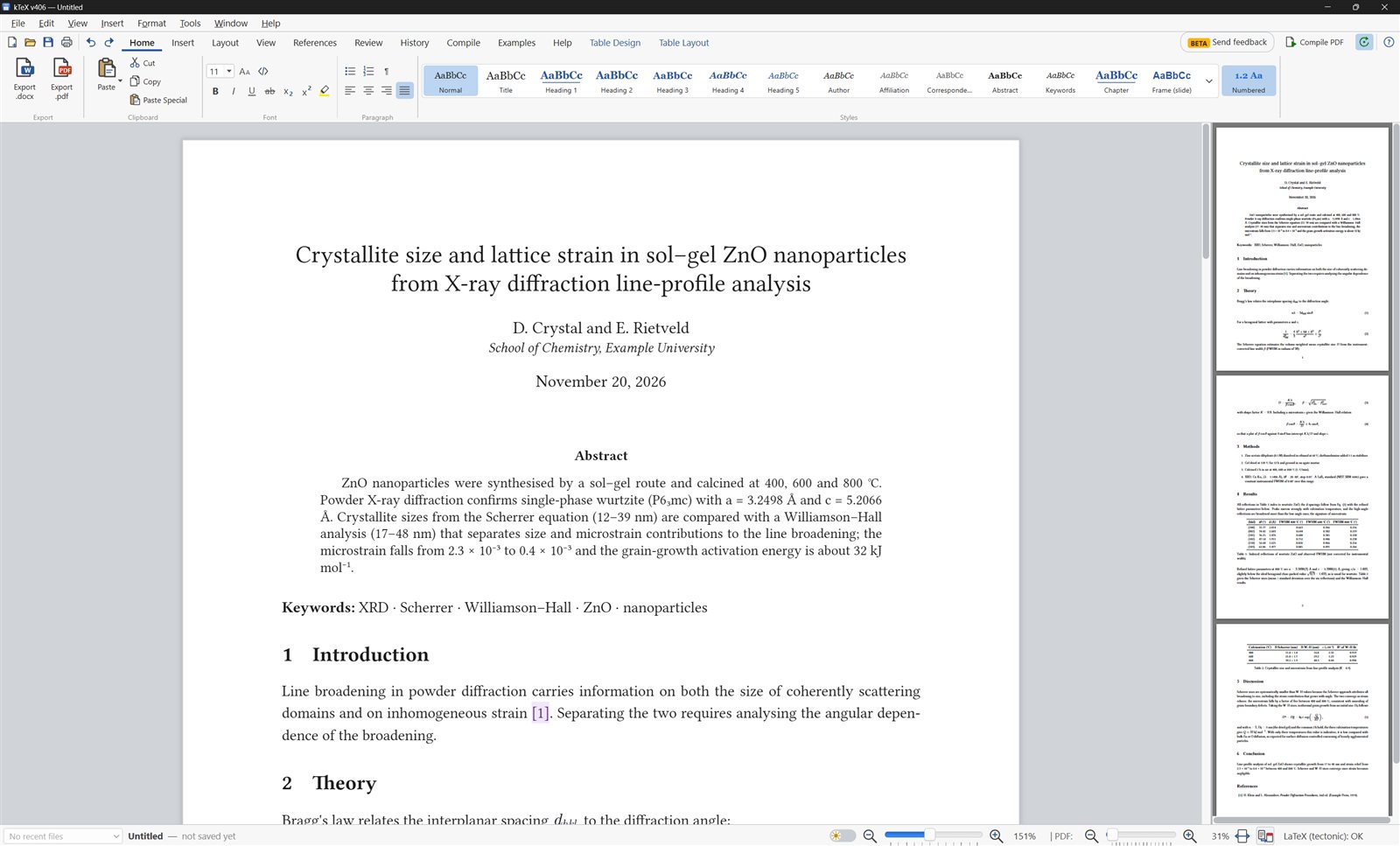
Choose a style from Home ▸ Styles. The gallery shows Body text, Title, H1, H2 and H3; open ▾ for the rest. You can also use Format ▸ Style.
| Style | Becomes in LaTeX |
|---|---|
| Body text | an ordinary paragraph |
| Title, Author, Affiliation, Correspondence | the title block (\title, \author, …) |
| Abstract, Keywords | the abstract and keywords (Insert ▸ Abstract paragraph / Keywords paragraph) |
| Chapter, Heading 1–5 | \chapter, \section … \subparagraph |
| Frame (slide) | a beamer slide |
| Box (framed) | a framed box |
- Numbered heading (the tile next to the gallery) switches numbering on or off for the current heading. Numbered headings appear in the table of contents.
- Pressing Enter at the end of a title or heading continues with Body text.
Character formatting
| Format | Shortcut / place |
|---|---|
| Bold, Italic, Underline | Ctrl+B, Ctrl+I, Ctrl+U |
| Strikethrough, Small caps, Code (monospace) | Home ▸ Font |
| Subscript, Superscript | Home ▸ Font |
| Highlight | Ctrl+Shift+H (Tools ▸ Comments & Highlights ▸ Remove highlight to undo) |
| Font size | Home ▸ Font size box: 8–24 pt in the list, any value from 6 to 72 pt typed |
| Clear formatting | Edit ▸ Clear formatting |
Lists, alignment and layout
- Lists: use Bullet list or Numbered list on the Home tab.
- Enter on an empty item ends the list.
- Backspace at the start of an item lifts it out of the list.
- Alignment: Align left, Center, Align right and Justify.
- Line break without a new paragraph: Shift+Enter.
- Page setup is on the Layout tab:
- Margins: Normal (2.54 cm), Narrow (1.27 cm), Moderate, Wide, or Custom Margins….
- Size: A4, Letter or Legal.
- Columns: 1, 2 or 3 columns for the whole document.
- For part of the page only, use Insert ▸ Multi-column region (2)….
- Document type: Layout ▸ Document type shows every LaTeX class as a page thumbnail; hover for a description. Changing the class re-typesets the whole document, for example an article into an IEEE paper.
- Insert ▸ Page break and Horizontal rule.
The date
Insert ▸ Date switches the date under the title on or off. Right-click the date to choose a format:
- 9 November 2026
- November 9, 2026
- November 2026
- 09/11/2026
- 2026-11-09
Choose Class default to let the document class decide, or Remove date to take it out.
Theorems and proofs
Insert ▸ Theorems ▸ Theorem (split button) inserts one of eight kinds: Theorem, Lemma, Proposition, Corollary, Definition, Example, Remark or Proof.
- When the cursor is inside a theorem, the Theorem tab lets you change its kind, or give it a name with Name…, as in Theorem 2 (Fermat).
- Press Enter on an empty line to leave the theorem.
Links, footnotes and raw LaTeX
- Hyperlink… (Ctrl+K): asks for the URL. The hyperref package is added for you.
- Footnote…: use References ▸ Footnotes or the Insert menu.
- Insert ▸ LaTeX ▸ Code block…: a verbatim code listing.
- Insert ▸ LaTeX ▸ Raw LaTeX…: any LaTeX you type goes into the document unchanged. Use it for anything kTeX has no button for.
- View ▸ Show LaTeX source: shows raw LaTeX as source on the page instead of rendering it.
Copy and paste
- Pasting a picture, screenshot, or a figure copied from Word or PowerPoint creates a figure automatically. You can also drag a picture file onto the page.
- Paste Special… (Ctrl+Alt+V) asks how to paste: Keep Source Formatting, Keep Text Only, LaTeX (as document content) or Picture. "LaTeX" turns pasted LaTeX source into real kTeX content.
- To turn selected text into maths, right-click it and choose Convert to equation….
Find and replace
Ctrl+F opens the find bar and Ctrl+H opens find-and-replace.
- Enter finds the next match, Shift+Enter the previous one, and Esc closes the bar.
- Tick Match case for exact capitalisation.
- Use Replace for one match and Replace all for every match.
Formatting marks
Ctrl+* (Home ▸ Paragraph ▸ Show formatting marks) shows spaces as dots and paragraph ends as ¶.
Comments (reviewing)
Select text and press Ctrl+Alt+M (Review ▸ New comment) to attach a comment in the margin. The author name comes from your Git user name when one is set.
- Ctrl+Shift+[ and Ctrl+Shift+] move to the previous and next comment.
- Accept keeps the text and removes the comment; Reject removes the commented text.
Spelling
Review ▸ Check spelling is on by default and underlines unknown words using the English dictionary.
- Right-click an underlined word for suggestions, or to Add "word" to dictionary.
- F7 (Spelling list) opens a panel listing every mistake in the document, with Change, Change all, Ignore, Ignore all, Add to dictionary and Check again. Ignore all lasts until you close kTeX.