Figures, drawings and tables
Pictures
There are three ways to add a picture:
- Insert ▸ Illustrations ▸ Figure…: choose the image with Browse… (PNG, JPG, PDF, EPS or SVG), and optionally type a Caption and a Label.
- Paste a picture or screenshot. Figures copied from Word or PowerPoint work too.
- Drag an image file onto the page.
When a picture is selected, the Picture tab (and the right-click menu) offers:
- Arrange: Left, Center or Right.
- Size: 25 %, 50 %, 75 % or 100 % of the text width.
- Insert Caption: see Captions below.
- Edit drawing (for drawings made in kTeX) and Delete Picture.
Captions and labels
Insert Caption asks for the caption and a Label (for cross-references). If you leave the label empty, kTeX makes one from the caption.
References ▸ Captions & labels… lists every figure, table, numbered equation and heading. Filter by All, Figures, Tables, Equations or Headings, edit any caption or label, or Go to it. If you rename a label, every cross-reference to it is updated.
The drawing canvas
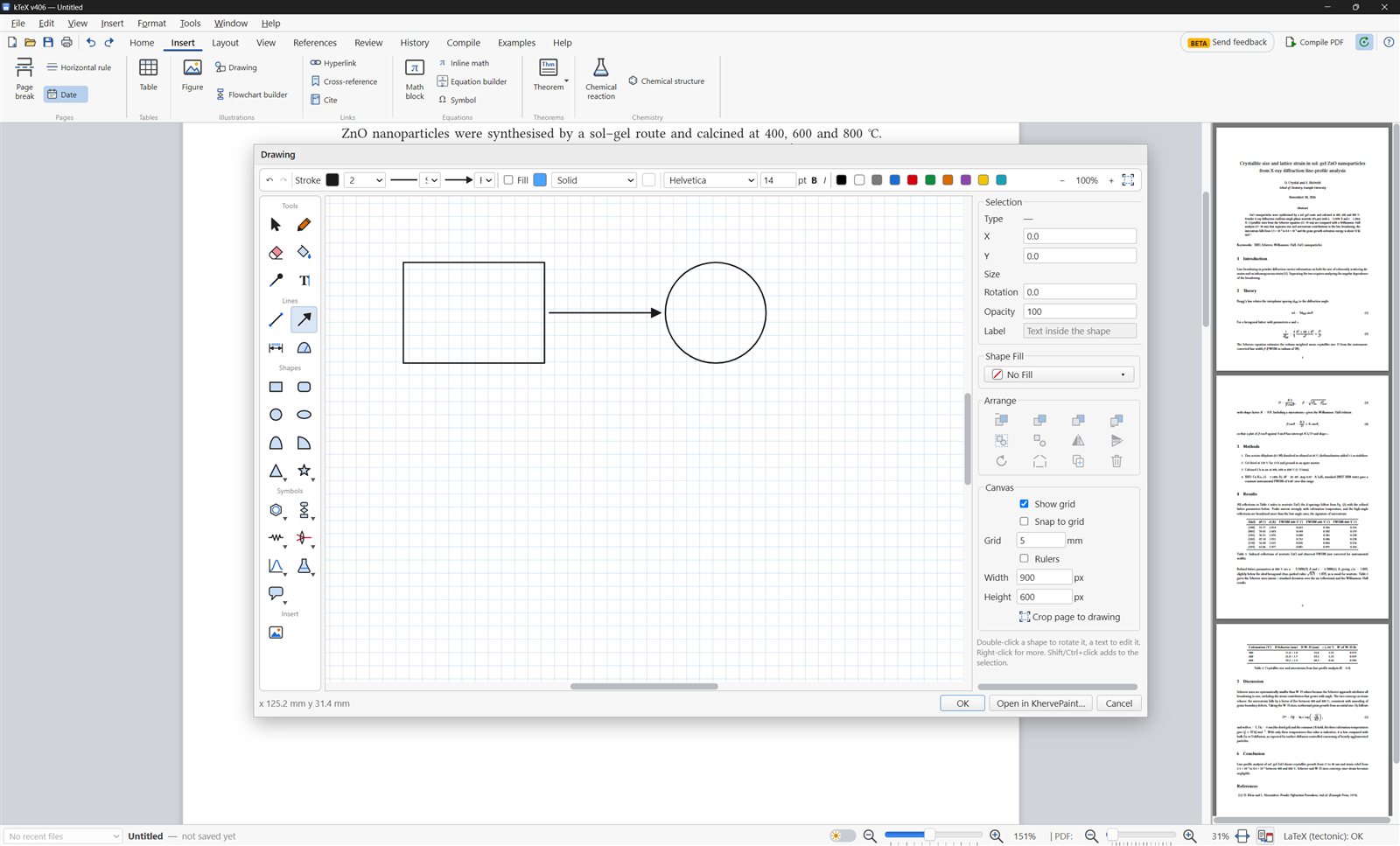
Insert ▸ Drawing… opens a vector drawing editor. The drawing is saved with the document and placed as a figure. Double-click it later to edit it.
Tools (with their key):
- Select/move/resize (V), Pencil (P), Eraser (X), Bucket fill (B), Colour picker (K), Text (T)
- Line (L), Arrow (A), Dimension line in mm (M), Protractor
- Rectangle (R), Rounded rectangle, Circle (C), Ellipse (E), Half circle, Quarter circle
Shapes:
- Polygons: triangle, right triangle, diamond, parallelogram, trapezoid, pentagon, hexagon, heptagon, octagon.
- Stars & symbols: stars, cross, chevron, block arrow, lightning bolt, house.
Symbol libraries:
- Flowchart, Electrical/circuit, Optics
- Maths (axes, graphs, vectors), Lab glassware
- Annotation arrows & callouts
Chemistry tools:
- Bonds: single, chain, double, triple, wedge, hash, hydrogen bond
- Rings: benzene, cyclohexane, cyclopentane
- Atom/group labels
Styling:
- Lines: solid, dashed, dotted or dash-dot.
- Arrowheads: filled, open, stealth or double-ended.
- Fills: solid, linear gradient, radial gradient, or sphere highlight.
Working with the canvas:
- Show grid, Snap to grid and Rulers, plus zoom.
- Undo (Ctrl+Z) and Redo (Ctrl+Shift+Z).
- Right-click a selection to Copy, Duplicate, Delete, Group/Ungroup, Flip, Rotate or Break into edges.
Open in KhervePaint… hands the drawing to KhervePaint for raster painting, if you have it installed. Right-clicking a drawing on the page also offers Edit in KhervePaint.
Flowcharts
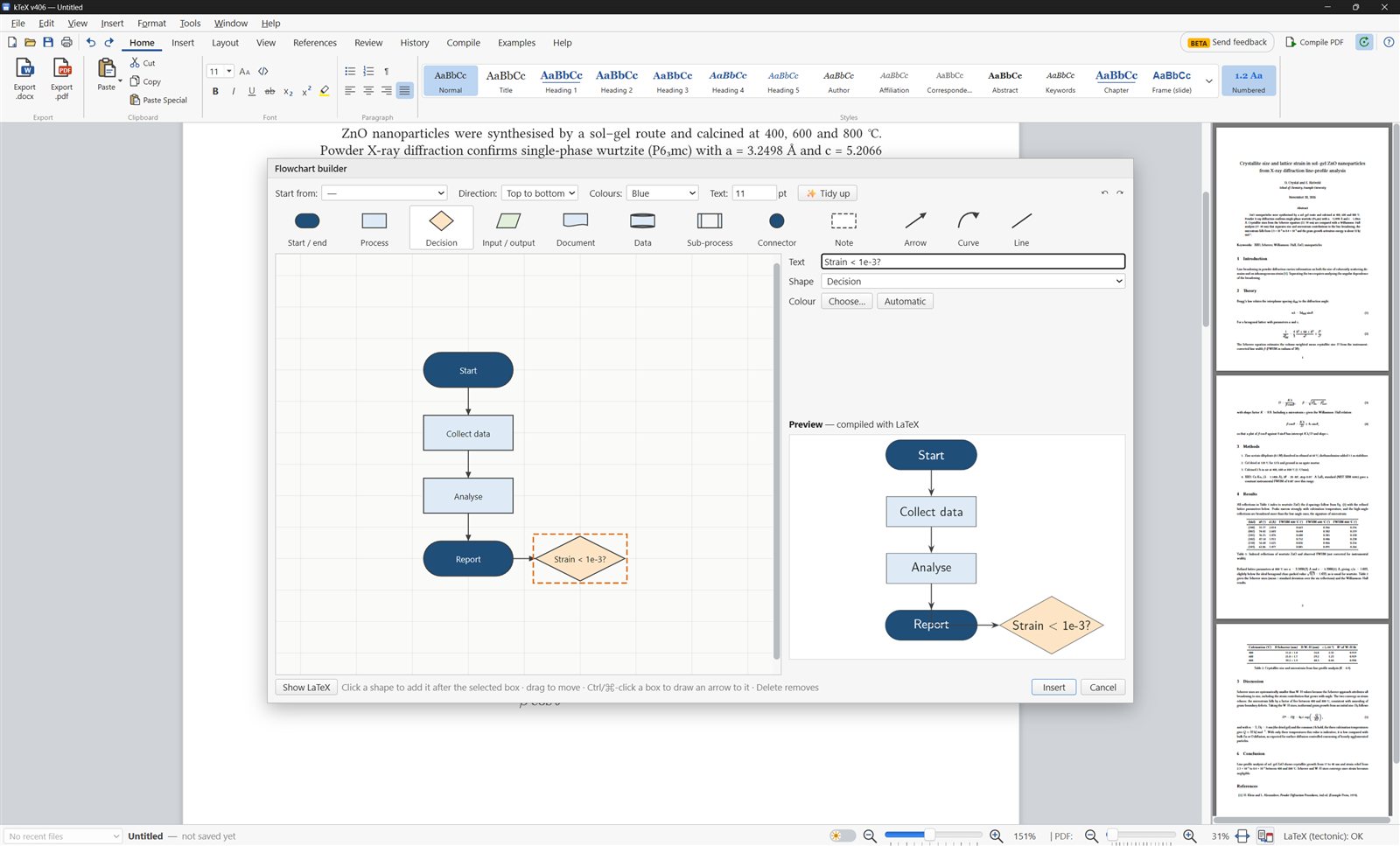
Insert ▸ Flowchart builder… (Ctrl+Shift+F) builds TikZ flowcharts, so they typeset in the same font as your text.
- Click a shape to add it after the selected box, joined by an arrow.
- Drag a box to move it; boxes snap to a grid.
- Ctrl-click (⌘-click on a Mac) another box to draw an arrow to it.
- Select a box to set its Text, Shape and Colour.
- Select an arrow to set its Label, where it leaves and arrives, Bend, Route, Dashed, the arrowheads, or Reverse direction.
- Direction: top to bottom, or left to right.
- Tidy up lays the whole chart out neatly.
- The preview is typeset with LaTeX. Show LaTeX shows the TikZ code.
Right-click a flowchart on the page and choose Edit flowchart… to change it later.
Tables
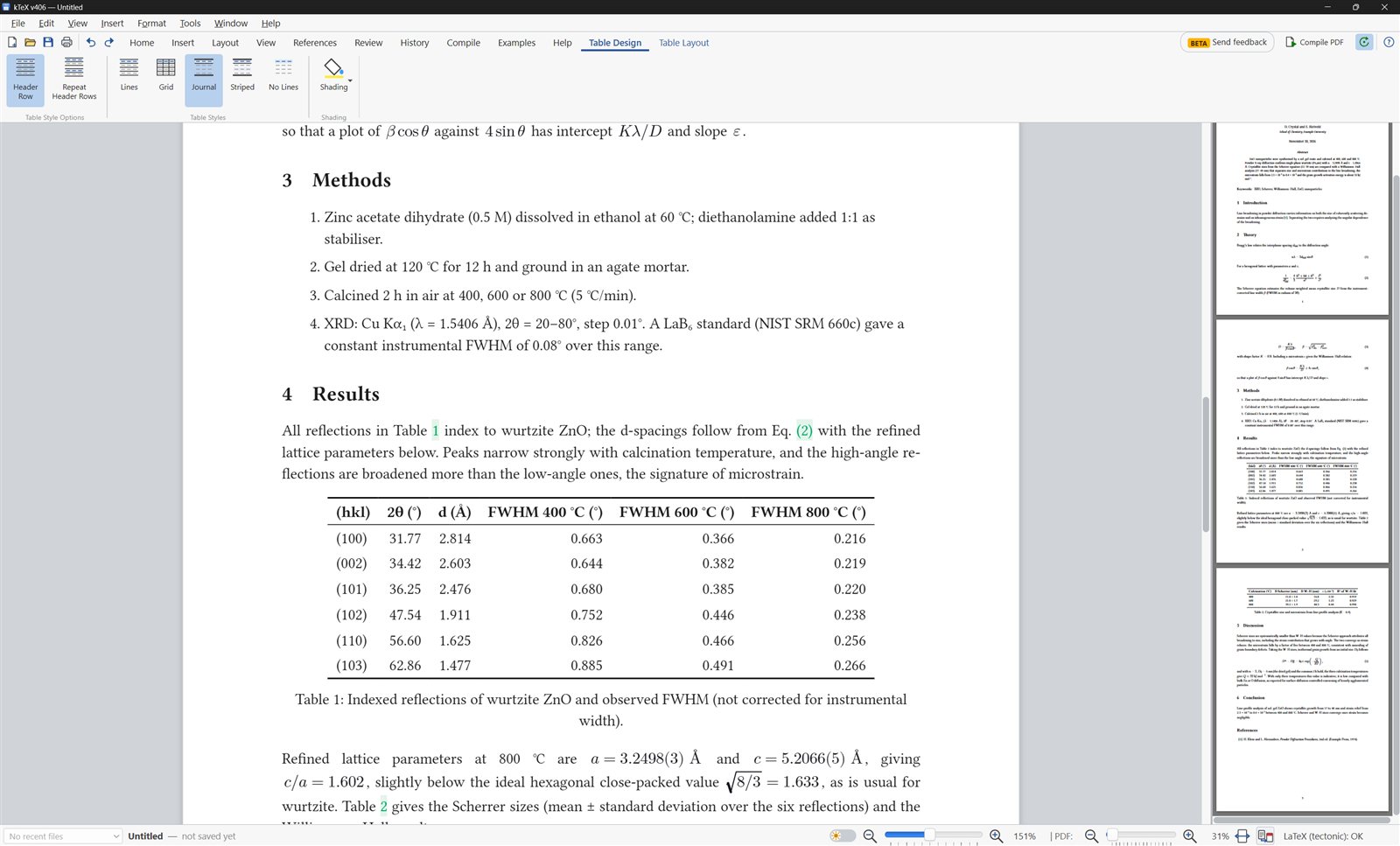
Insert ▸ Tables ▸ Table… asks for Rows, Columns, a Caption and a Label.
- Click in a cell and type. Tab moves to the next cell, and Tab in the last cell adds a new row. Shift+Tab goes back.
- Drag across cells to select them.
Table Design tab
- Header Row: make the first row a header.
- Repeat Header Rows: repeat the header on each page of a long table.
- Table styles: Lines, Grid, Journal (booktabs rules), Striped, or No Lines.
- Shading: shade selected cells (Yellow, Light red, Light green, Light blue, Grey, Cream, or More Colors…).
Table Layout tab
- Insert Above, Below, Left or Right.
- Merge Cells and Split Cells.
- Delete Row, Delete Column or Delete Table.
- Align Left, Center or Align Right: aligns the whole column.
- Sort A→Z / Z→A: the header row stays on top, and numbers sort as numbers.
- Insert Caption.
Right-click a cell to Insert picture in cell… or Remove picture(s) from cell.