Getting started
Install
Download kTeX from the kTeX page.
- Windows (64-bit): run
KherveTeX-Setup.exe. The installer is not code-signed yet, so Windows SmartScreen may warn you. Click More info ▸ Run anyway. - macOS (Apple Silicon): open the
.dmgand drag KherveTeX into Applications. kTeX is not notarised by Apple, so the first time macOS refuses to open it: click Done, then go to System Settings ▸ Privacy & Security, scroll down to Security and click Open Anyway. The step-by-step guide with pictures shows every screen.
Nothing else is needed. The LaTeX engine and an offline cache of TeX packages and fonts ship inside kTeX, so every template compiles on a computer that has never been online.
Updates
kTeX checks for a new version a few seconds after it starts and then every half hour. With Help ▸ Update automatically on (the default), the update downloads by itself:
- Windows: the update is installed when you quit kTeX.
- macOS: it installs straight away and offers Restart now or Later.
You can also check at any time with Help ▸ Check for updates….
The Welcome page
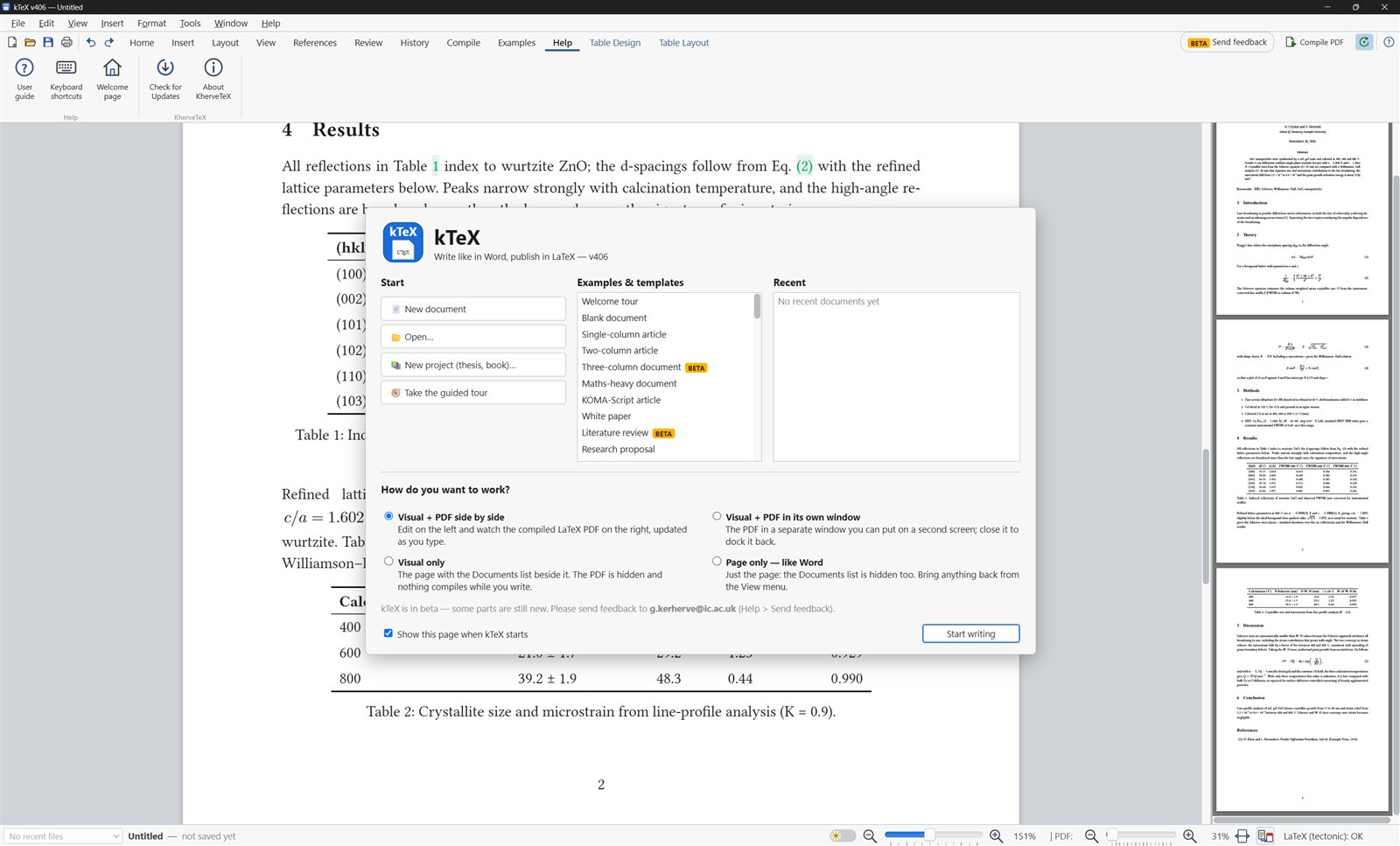
The Welcome page opens when kTeX starts. You can open it again from Help ▸ Welcome page…. It offers:
- Start: New document, Open…, New project (thesis, book)…, and Take the guided tour.
- Examples & templates: the full template gallery (see Files, templates and projects).
- Recent documents.
- How do you want to work? Choose the layout you prefer:
- Visual + PDF side by side: write on the left, the typeset PDF on the right.
- Visual + PDF in its own window: handy with two screens.
- Visual only / Page only, like Word: the PDF is hidden. The page view already looks like the paper.
- Show this page when kTeX starts: untick it to go straight to your work.
New to kTeX? Choose Take the guided tour. It opens a Welcome tour document that walks through every feature on real pages.
The window
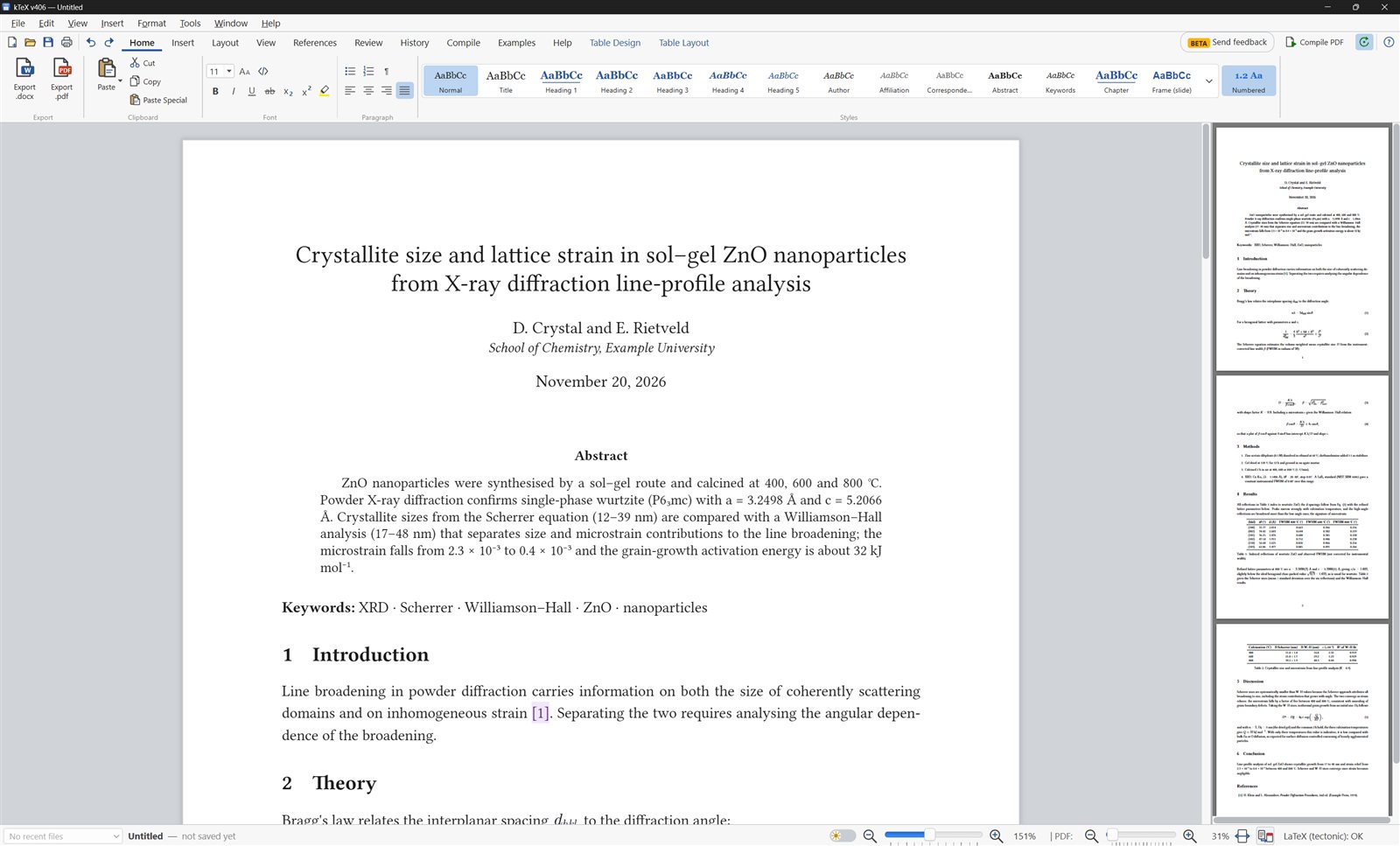
From top to bottom:
- Title bar: shows "kTeX vN — document name", and the current history branch in square brackets.
- Menu bar: File, Edit, View, Insert, Format, Tools, Window, Help.
- Ribbon: Word-style tabs: Home, Insert, Layout, View, References, Review, History, Compile, Examples, Help.
- The quick-access corner on the left holds New, Open, Save, Print, Undo and Redo.
- On the right are Compile PDF, the Auto-compile switch and the User guide.
- Contextual tabs appear when the cursor is in a table (Table Design, Table Layout), a picture (Picture), a theorem (Theorem) or an equation (Equation).
- Document area: the Visual tab, Code tab and Console, with the PDF beside them.
- Status bar:
- PDF zoom (25–300 %) and Fit page width.
- The "Make the PDF follow the text" switch.
- The compile progress bar.
- Recent files, the Documents panel switch and the light/dark theme switch.
Views
| View | How to show it | What it is |
|---|---|---|
| Visual | Ctrl+1 · View ▸ Views ▸ Visual | The page you write on, typeset as you type |
| Code | Ctrl+2 · View ▸ Views ▸ Code | The LaTeX kTeX generates (editable) |
| Ctrl+3 · View ▸ PDF | The compiled PDF | |
| PDF side panel | Ctrl+4 | PDF docked beside the editor |
| Documents | Ctrl+5 | The panel of documents in a project |
| Console | Ctrl+6 | The compiler log |
- PDF in its own window: use View ▸ PDF in its own window, or Detach PDF on the View tab. Close that window to dock the PDF back.
- Light or dark: use View ▸ Theme or the switch in the status bar.
Your first document
- Press Ctrl+N (or choose Blank document on the Welcome page).
- Type a title and choose the Title style from Home ▸ Styles. Press Enter, and the next paragraph is Body text again.
- Add a heading with Heading 1, then write your text.
- Press Ctrl+M for an equation, or Ctrl+Shift+M for a displayed one.
- Watch the PDF update. Auto-compile recompiles about half a second after you stop typing.
- Press Ctrl+S to save. The document is saved as a single
.ktexfile.
kTeX has no autosave yet, so save often. On every save, kTeX can also record a version in the document's history (see History, GitHub and Overleaf).