Compiling, PDF and Code
Compiling
kTeX typesets with tectonic, a modern LaTeX engine built into the app. It needs no TeX installation, and the packages and fonts the templates use are bundled for offline work.
-
Compile PDF: Ctrl+Shift+C, the Compile button in the ribbon corner, or Compile ▸ Compile PDF.
-
Auto-compile (on by default): kTeX recompiles about half a second after you stop typing. Switch it off for very large documents and compile by hand.
-
Compile range: typesets only part of the document while you work on it, which is much faster for a long thesis.
- Put Insert ▸ LaTeX ▸ Compile start marker and Compile end marker around the part you want.
- Use Not-compile start/end markers to leave a part out instead.
- Switch on Compile ▸ Options ▸ Compile range.
Exports always use the whole document.
-
Skip images: leaves pictures out of the preview for speed. They are still in the export.
If a compile fails, the Console tab (Ctrl+6) turns red and shows the LaTeX log.
Compiler settings (Tools ▸ Compiler)
- LaTeX (tectonic): the default engine.
- Typst: an alternative engine. It is not bundled; install it yourself from typst.app first.
- Compiler status…: checks that the engine and its package cache are working, and offers Download offline bundle….
- Open the package cache folder: shows where downloaded TeX packages are stored.
The PDF
Place the PDF where you like:
- Side panel: Ctrl+4.
- Own window: View ▸ PDF in its own window, or Detach PDF. Close the window to dock it again.
- Hidden: View ▸ Visual only, as in Word.
Moving around:
- The status bar zooms from 25 % to 300 %, and Fit page width is Ctrl+0.
- Make the PDF follow the text: with this switch on, the PDF scrolls to the place you are editing.
- Right-click the PDF and choose Show in Visual or Show in Code to jump to the source of what you clicked.
- Recompiling keeps your place in the PDF.
The Code tab
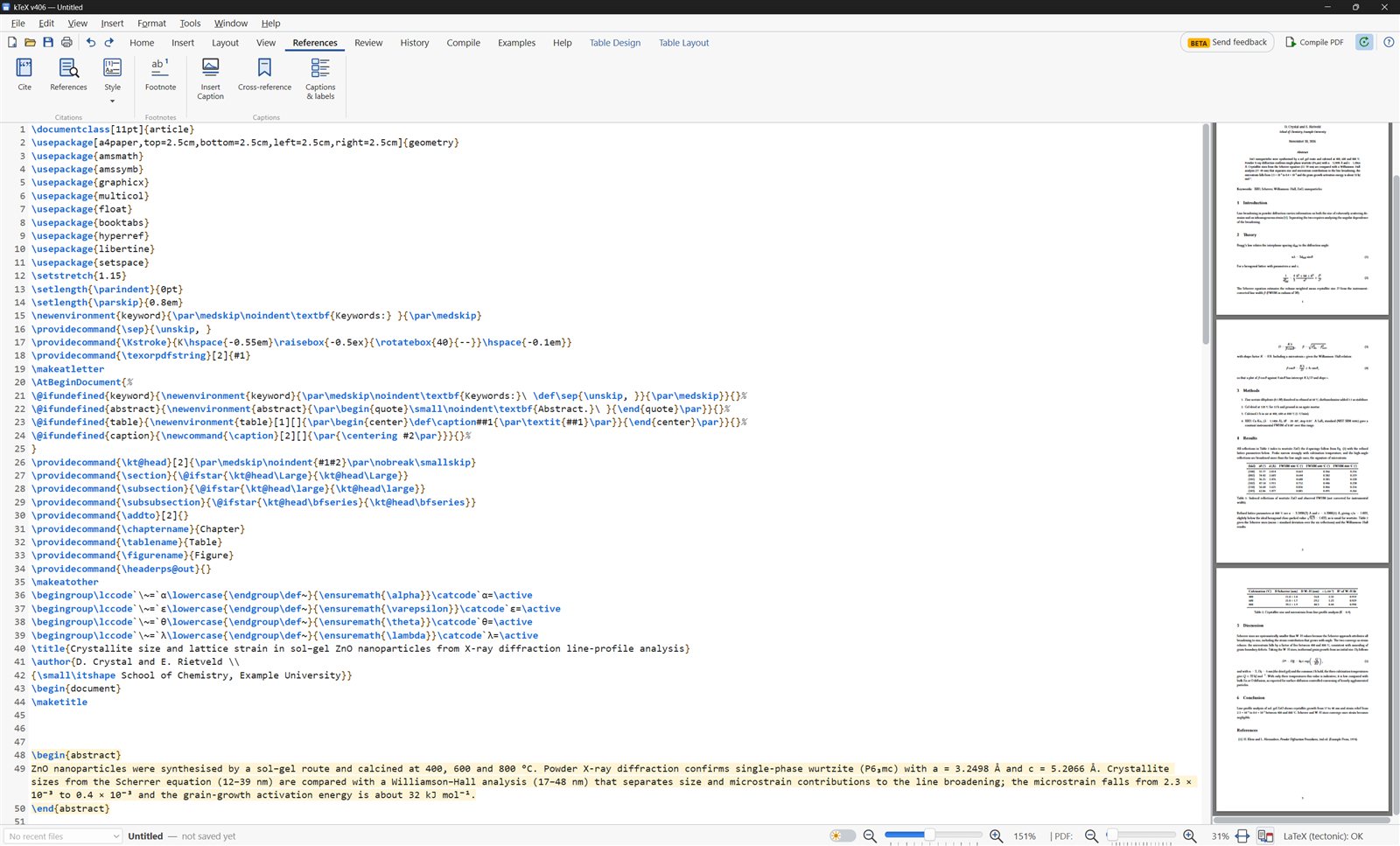
Ctrl+2 shows the LaTeX kTeX generates, with syntax highlighting and line numbers.
- You can edit it directly. About 1.5 seconds after you stop typing, your changes are read back into the visual document.
- Command completion pops up after two characters. Use the arrow keys to choose, and Enter or Tab to accept.
- Right-click, then Show in Visual or Show in PDF, to find the same place in the other views.
The Code tab is a good way to learn LaTeX: do something in the Visual tab and watch the code it produces.
Printing
- Print preview… (Ctrl+Shift+P) has zoom, Fit page, Single page or Facing pages, and Portrait or Landscape.
- Print… (Ctrl+P) opens the compiled PDF in your system's PDF viewer, and you print from there.